Help Center
Files: Reusable Files for Workflows and AI Contexts
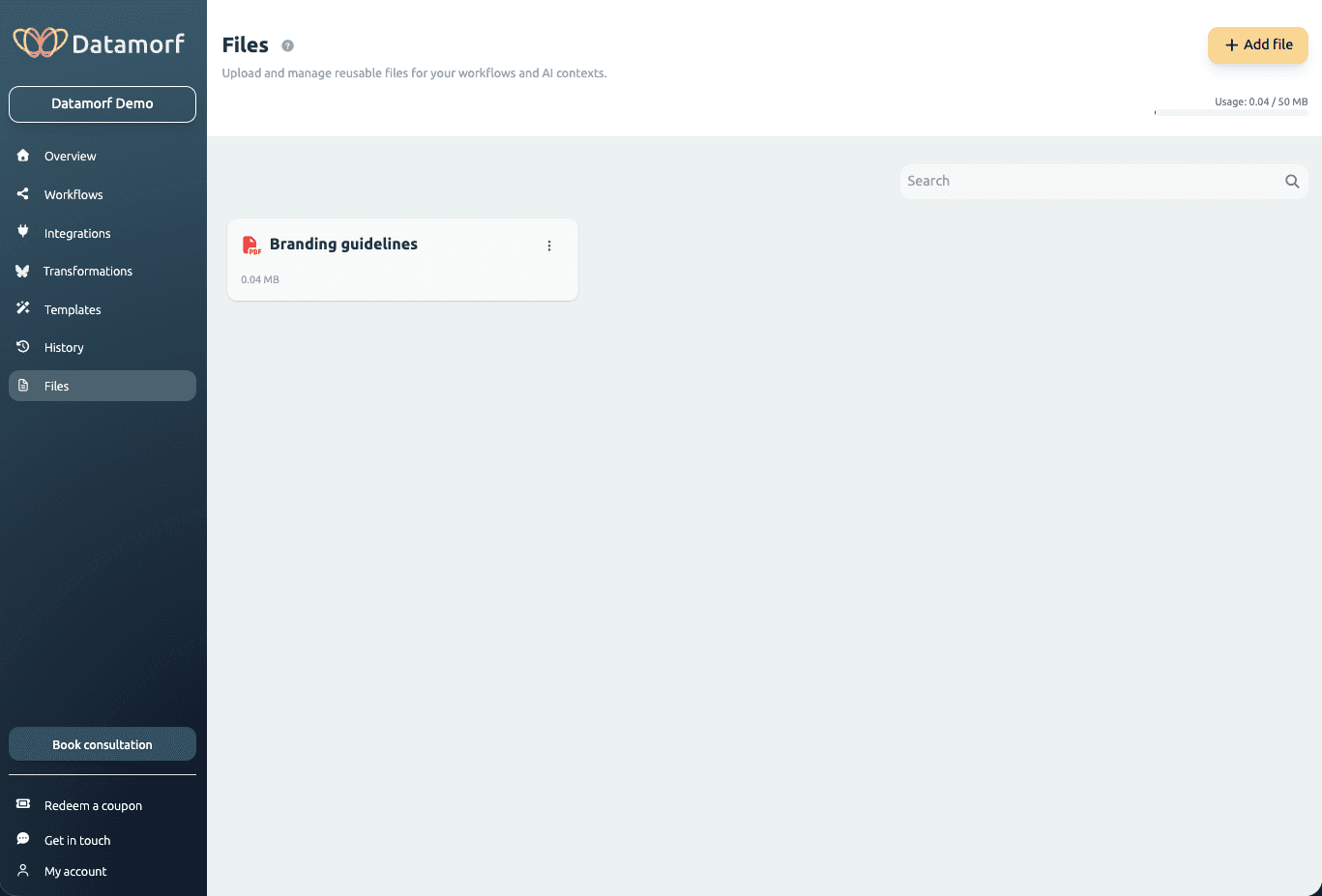
The Files section in Datamorf is a centralized library where you can upload and manage files that can be referenced across your workflows and AI-powered transformations. It is accessible from the left navigation and available to all members of your workspace.
What Files Are Used For
Files in Datamorf serve two primary purposes:
Workflow context — Attach a file to a workflow so its content can be referenced during execution. For example, a CSV of reference data, a lookup table, or a list of target accounts that a workflow uses to filter or enrich records.
AI context — Provide a file as context to an AI transformation. For example, upload your company's Ideal Customer Profile document, a product sheet, or brand guidelines, and reference it inside an AI prompt so the model generates outputs that are grounded in your specific business context rather than generic knowledge.
This makes it straightforward to build AI-powered GTM workflows that produce outputs consistent with your brand, your ICP, or your internal knowledge — without embedding long reference text directly inside transformation prompts.
Uploading and Managing Files
Add a file — Click the Add file button in the top-right corner of the Files screen and select the file from your computer. Supported formats include PDF, CSV, TXT, JSON, images, and more. The file is uploaded to your workspace and becomes immediately available for use in workflows and transformations.
View files — All uploaded files are displayed as cards showing the file name and size. Use the search bar to filter by name if your library grows large.
Delete a file — Click the three-dot menu on any file card to access the delete option. Deleting a file removes it from the workspace — make sure no active workflows are referencing it before doing so.
Storage Usage
Your current storage usage is displayed in the top-right corner of the Files screen (e.g., '0.04 / 50 MB'). The storage limit depends on your plan. If you approach your limit, delete files that are no longer needed or contact the support team to discuss a higher allocation.