Help Center
Get started
Key concepts
Troubleshooting
Your workspace
Your account
Inside the Datamorf Workflow Interface
Every workflow in Datamorf lives on a single screen with four tabs across the top and a settings panel accessible from the workflow title. Here is a complete tour of everything you will find inside a workflow — from the canvas to the controls.
The Four Tabs
Every workflow in Datamorf lives on a single screen with four tabs across the top and a settings panel accessible from the workflow title. Here is a complete tour of everything you will find inside a workflow — from the canvas to the controls.
The Four Tabs
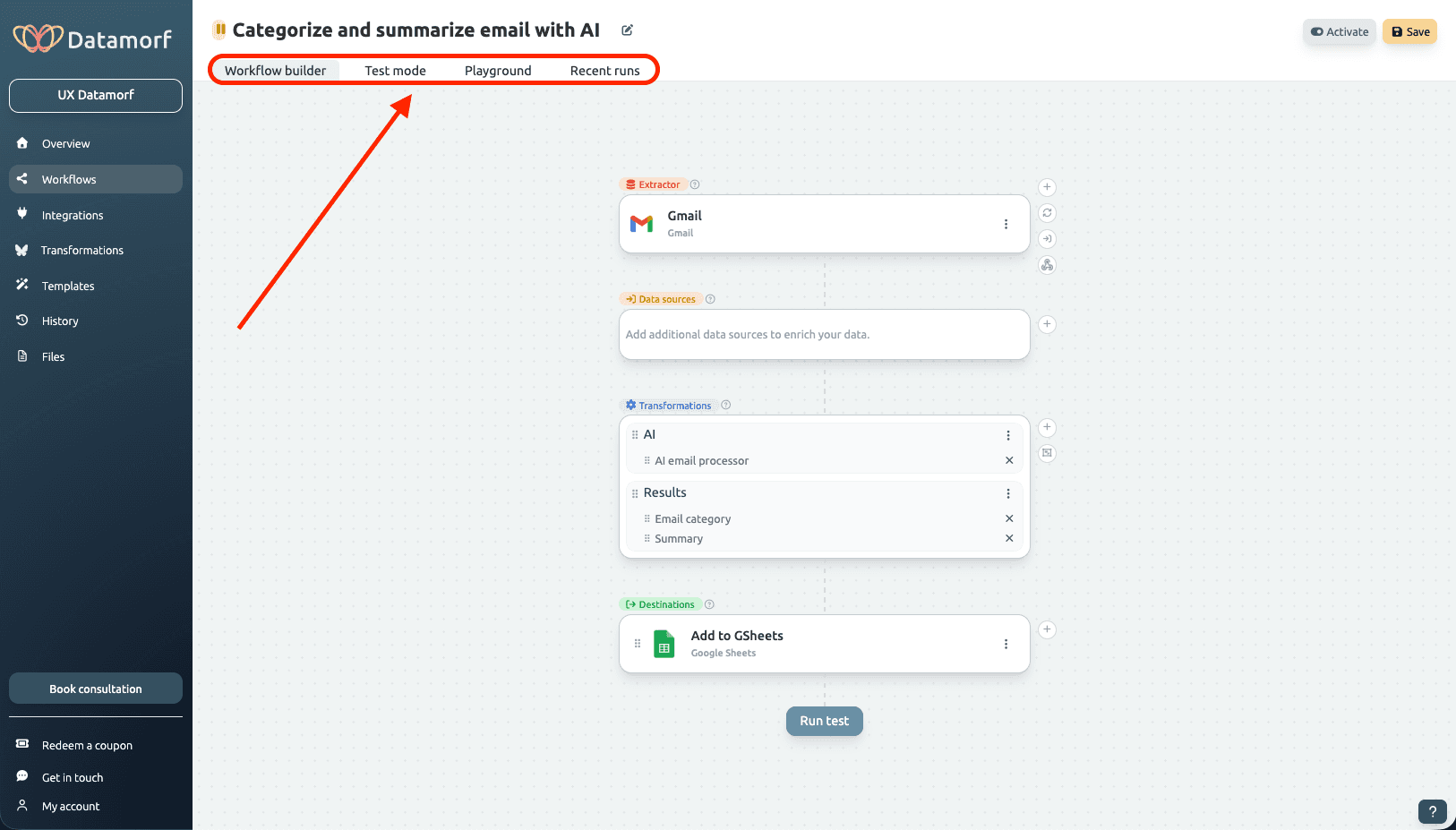
Workflow Builder
The main canvas where you design your activation pipeline. The builder displays four sequential blocks, always in this order from top to bottom:
Extractor — The trigger block. This is where you configure the data source, schedule, and extraction settings that start the pipeline. See the Extractor page for full configuration details.
Data Sources — Additional integrations queried mid-run to enrich extracted records. For example, calling Apollo or Waterfall.io to append firmographic data to contacts pulled from HubSpot. Multiple sources can be added and reordered.
Transformations — Where data is cleaned, modified, and enriched. Transformations are organized into named groups (e.g., 'Default group', 'Contact Normalization'). Individual transformation steps live inside groups and can be reordered by dragging. Click on transformation to learn more about it.
Destinations — The activation layer. One or more destination steps define where the processed data is written — for example, 'Upsert contact in HubSpot', 'Update row in Google Sheets', or 'Add contact to sequence in Instantly'. Multiple destinations can run in the same workflow.
All four blocks are always visible on the canvas, giving a complete view of the pipeline from extraction to activation in a single scroll.
Test Mode
Test Mode lets you run the full workflow — or everything up to (but not including) the destination layer — using real data. Use it to validate that your extraction settings, data sources, and transformations produce the correct output before activating the workflow. Runs that stop before the destination do not count toward your monthly run quota.
→ See Running a Workflow Test for detailed guidance.
Playground
An interactive sandbox for testing transformation logic in isolation. Load sample records manually or import them from a previous run, then execute individual transformations or entire chains to preview their output. Results appear in a table — each row is a record, each column is a transformation output. The Playground is especially useful when iterating on AI-based scoring, enrichment chains, or complex field logic.
Playground runs do not consume workflow credits, though data source calls (e.g., enrichment API lookups) may use built-in integration credits.
→ See The Playground for detailed guidance.
Recent Runs
The execution history for this specific workflow. Each entry shows the run timestamp, duration, and status — Success, Warning, or Error. Click any run to open its full log: trigger payload, data source results, transformation outputs, and destination responses, step by step.
→ See Inspect Previous Logs for detailed guidance.
The Workflow Title and Edit Panel
Workflow Builder
The main canvas where you design your activation pipeline. The builder displays four sequential blocks, always in this order from top to bottom:
Extractor — The trigger block. This is where you configure the data source, schedule, and extraction settings that start the pipeline. See the Extractor page for full configuration details.
Data Sources — Additional integrations queried mid-run to enrich extracted records. For example, calling Apollo or Waterfall.io to append firmographic data to contacts pulled from HubSpot. Multiple sources can be added and reordered.
Transformations — Where data is cleaned, modified, and enriched. Transformations are organized into named groups (e.g., 'Default group', 'Contact Normalization'). Individual transformation steps live inside groups and can be reordered by dragging. Click on transformation to learn more about it.
Destinations — The activation layer. One or more destination steps define where the processed data is written — for example, 'Upsert contact in HubSpot', 'Update row in Google Sheets', or 'Add contact to sequence in Instantly'. Multiple destinations can run in the same workflow.
All four blocks are always visible on the canvas, giving a complete view of the pipeline from extraction to activation in a single scroll.
Test Mode
Test Mode lets you run the full workflow — or everything up to (but not including) the destination layer — using real data. Use it to validate that your extraction settings, data sources, and transformations produce the correct output before activating the workflow. Runs that stop before the destination do not count toward your monthly run quota.
→ See Running a Workflow Test for detailed guidance.
Playground
An interactive sandbox for testing transformation logic in isolation. Load sample records manually or import them from a previous run, then execute individual transformations or entire chains to preview their output. Results appear in a table — each row is a record, each column is a transformation output. The Playground is especially useful when iterating on AI-based scoring, enrichment chains, or complex field logic.
Playground runs do not consume workflow credits, though data source calls (e.g., enrichment API lookups) may use built-in integration credits.
→ See The Playground for detailed guidance.
Recent Runs
The execution history for this specific workflow. Each entry shows the run timestamp, duration, and status — Success, Warning, or Error. Click any run to open its full log: trigger payload, data source results, transformation outputs, and destination responses, step by step.
→ See Inspect Previous Logs for detailed guidance.
The Workflow Title and Edit Panel
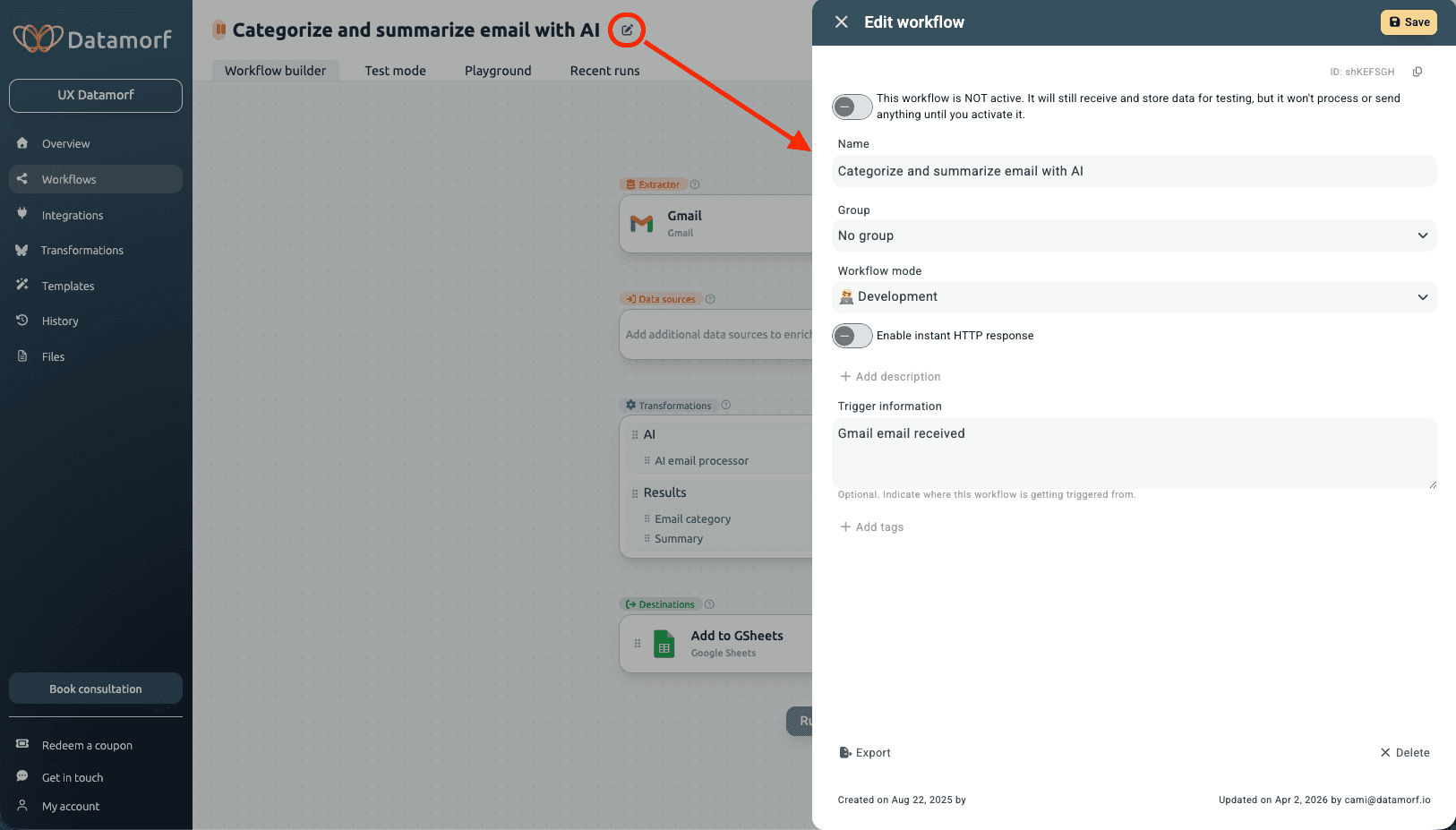
The workflow name is displayed at the top of the screen next to a small edit icon. Clicking the icon opens the Edit Workflow panel on the right side of the screen. From here you can configure:
Name — The workflow's display name. Use descriptive names that make the pipeline's purpose immediately clear to your team — for example, 'HubSpot Contact Enrichment — Weekly' or 'LinkedIn Leads to Salesforce'.
Active / Inactive toggle — Controls whether the workflow is running. When inactive, the workflow will still receive and store incoming webhook data for testing, but it will not process or send anything. Activate it when you are ready to go live.
Group — Assign the workflow to a group for organization. Groups are useful for separating workflows by team (Marketing, Sales, RevOps), by client, or by data type.
Workflow mode — Sets the lifecycle phase of the workflow. Available modes are Development, Testing, Production, and Deprecated. Modes are independent of the active/inactive state — they help your team understand whether a workflow is still being built, under review, live, or retired. You can filter the workflow list by mode from the main Workflows view.
Enable instant HTTP response — When enabled, the workflow immediately returns an HTTP response to the trigger source without waiting for the full pipeline to complete. Useful for webhook-triggered workflows where the external system expects a fast acknowledgement.
Description — An optional free-text description of what the workflow does, which data it processes, and any dependencies to be aware of. Useful for teams collaborating on a shared workspace.
Trigger information — Optional metadata about the expected trigger payload — useful for documenting what fields the workflow expects to receive, especially for webhook-triggered flows.
Tags — Add one or more tags for filtering and searching across your workflow library. Examples: 'CRM Sync', 'Lead Enrichment', 'Weekly', 'HubSpot'.
Export — Downloads the workflow as a JSON file. Use this to back up a workflow, share it with another workspace, or version-control it externally.
Delete — Permanently removes the workflow. This action cannot be undone.
The panel also displays the workflow ID (useful when contacting support), and the creation and last-updated timestamps with the author's email.
Save and Activate
The workflow name is displayed at the top of the screen next to a small edit icon. Clicking the icon opens the Edit Workflow panel on the right side of the screen. From here you can configure:
Name — The workflow's display name. Use descriptive names that make the pipeline's purpose immediately clear to your team — for example, 'HubSpot Contact Enrichment — Weekly' or 'LinkedIn Leads to Salesforce'.
Active / Inactive toggle — Controls whether the workflow is running. When inactive, the workflow will still receive and store incoming webhook data for testing, but it will not process or send anything. Activate it when you are ready to go live.
Group — Assign the workflow to a group for organization. Groups are useful for separating workflows by team (Marketing, Sales, RevOps), by client, or by data type.
Workflow mode — Sets the lifecycle phase of the workflow. Available modes are Development, Testing, Production, and Deprecated. Modes are independent of the active/inactive state — they help your team understand whether a workflow is still being built, under review, live, or retired. You can filter the workflow list by mode from the main Workflows view.
Enable instant HTTP response — When enabled, the workflow immediately returns an HTTP response to the trigger source without waiting for the full pipeline to complete. Useful for webhook-triggered workflows where the external system expects a fast acknowledgement.
Description — An optional free-text description of what the workflow does, which data it processes, and any dependencies to be aware of. Useful for teams collaborating on a shared workspace.
Trigger information — Optional metadata about the expected trigger payload — useful for documenting what fields the workflow expects to receive, especially for webhook-triggered flows.
Tags — Add one or more tags for filtering and searching across your workflow library. Examples: 'CRM Sync', 'Lead Enrichment', 'Weekly', 'HubSpot'.
Export — Downloads the workflow as a JSON file. Use this to back up a workflow, share it with another workspace, or version-control it externally.
Delete — Permanently removes the workflow. This action cannot be undone.
The panel also displays the workflow ID (useful when contacting support), and the creation and last-updated timestamps with the author's email.
Save and Activate
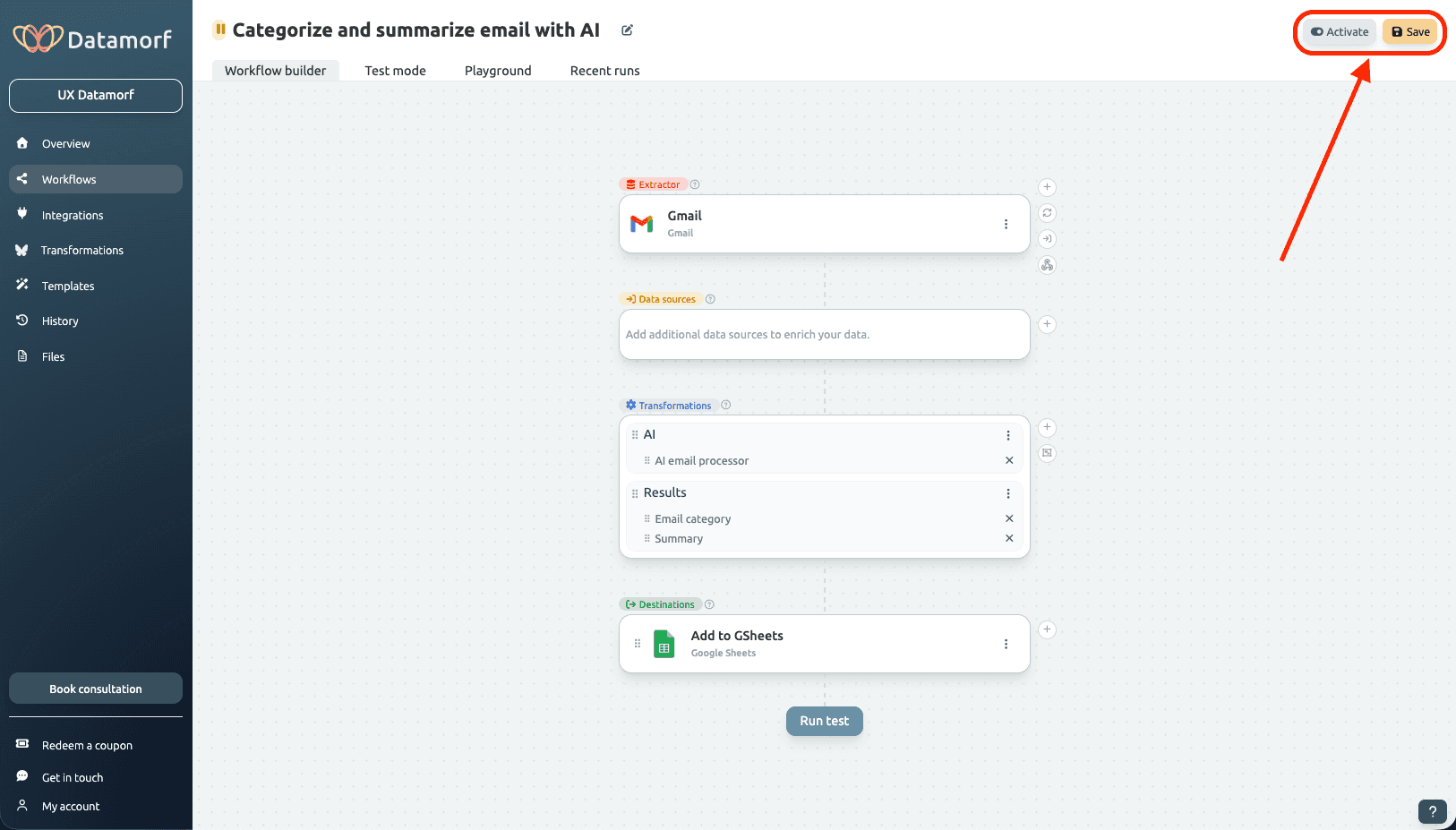
Two action buttons appear in the top-right corner of the workflow screen:
Save — Saves the current state of the workflow without activating it. Use Save frequently while building to avoid losing changes. A workflow can be saved in any state — active or inactive, any mode.
Activate / Deactivate — Toggles the workflow between active and inactive. When a workflow is activated, it begins running according to its trigger configuration. The button label changes to Deactivate when the workflow is already live, allowing you to pause it at any time.
The Help Button (?)
Two action buttons appear in the top-right corner of the workflow screen:
Save — Saves the current state of the workflow without activating it. Use Save frequently while building to avoid losing changes. A workflow can be saved in any state — active or inactive, any mode.
Activate / Deactivate — Toggles the workflow between active and inactive. When a workflow is activated, it begins running according to its trigger configuration. The button label changes to Deactivate when the workflow is already live, allowing you to pause it at any time.
The Help Button (?)
A question mark button appears in the bottom-right corner of the workflow builder screen. Clicking it gives you two options:
Start the onboarding tour — Launches a guided walkthrough of the workflow interface, highlighting each section and explaining what it does. Useful for new team members or anyone exploring a feature for the first time.
Book a consultation — Opens the booking link to schedule a call directly with the Datamorf team. If you are stuck on a workflow, need help designing a GTM activation pipeline, or want a walkthrough of a specific feature, this is the fastest way to get hands-on support.
A question mark button appears in the bottom-right corner of the workflow builder screen. Clicking it gives you two options:
Start the onboarding tour — Launches a guided walkthrough of the workflow interface, highlighting each section and explaining what it does. Useful for new team members or anyone exploring a feature for the first time.
Book a consultation — Opens the booking link to schedule a call directly with the Datamorf team. If you are stuck on a workflow, need help designing a GTM activation pipeline, or want a walkthrough of a specific feature, this is the fastest way to get hands-on support.